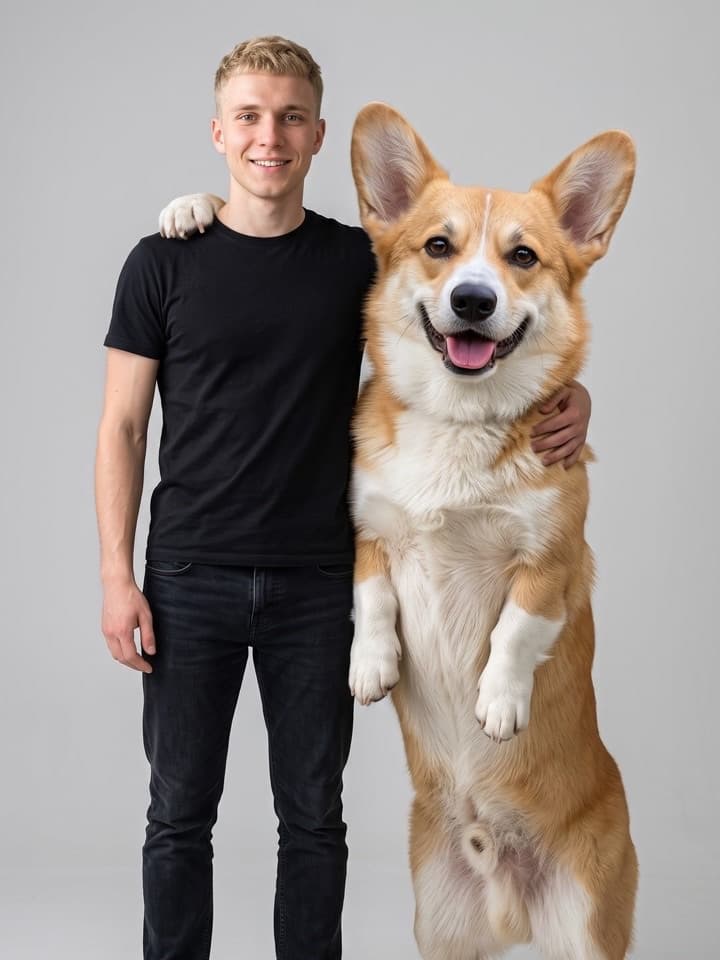
Photo of You and Your Dog Together, From Two Separate Photos
Me and My Pet · AI photo template · from 2 photos
Your photo plus your pet's photo makes one photo of the two of you.
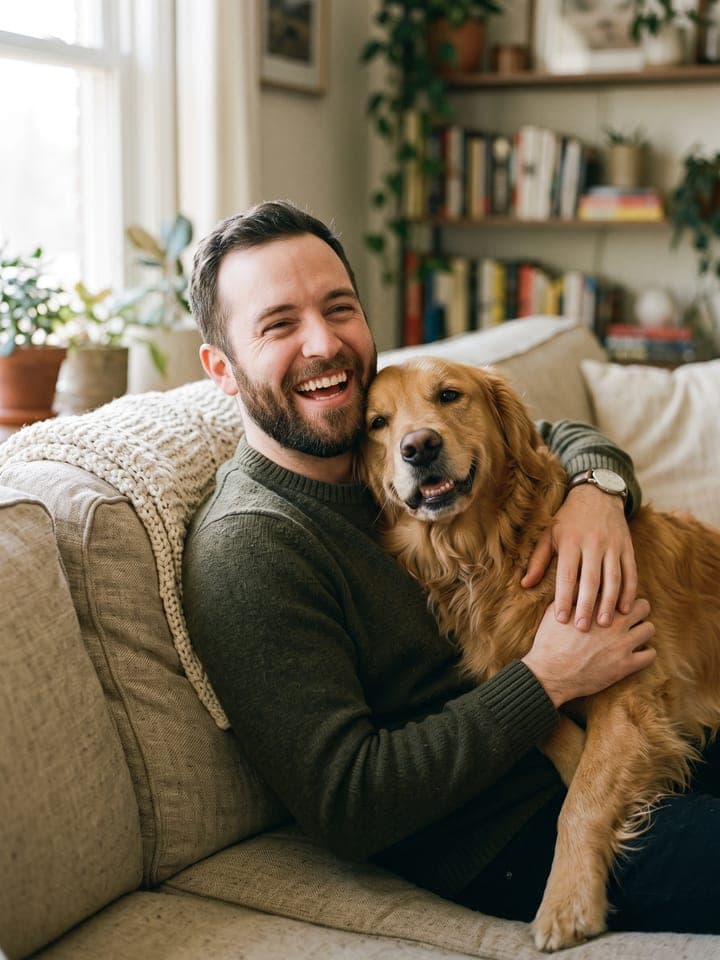
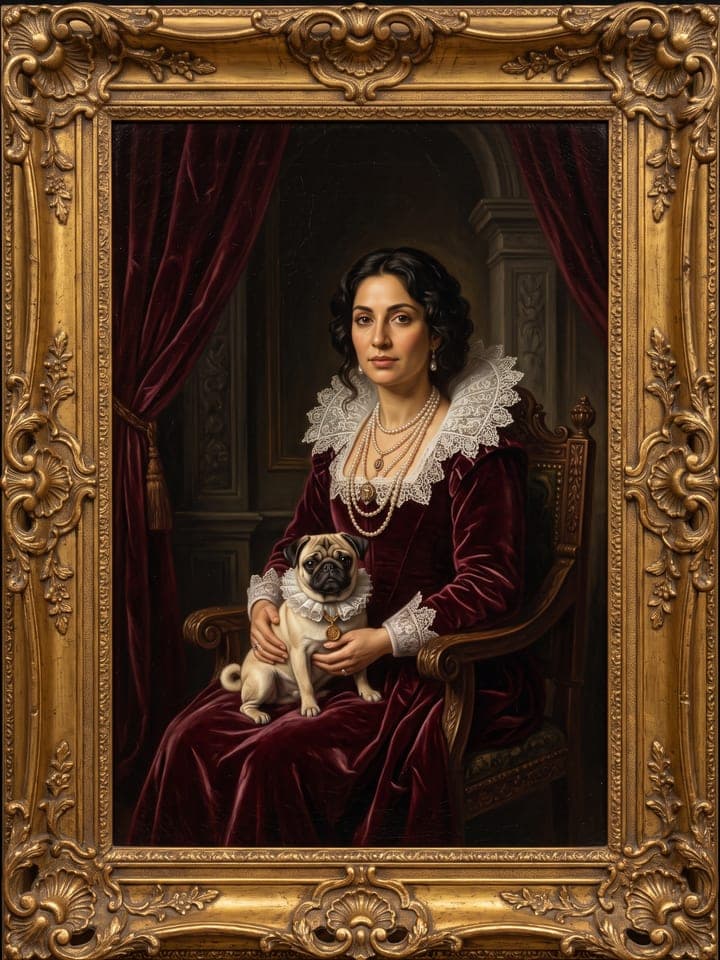
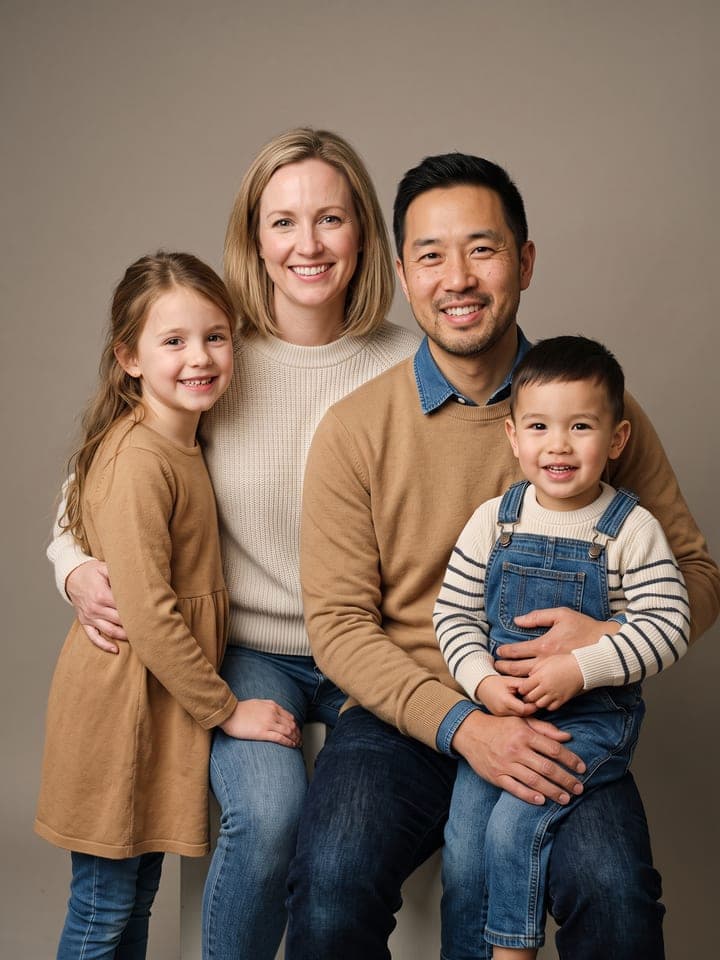
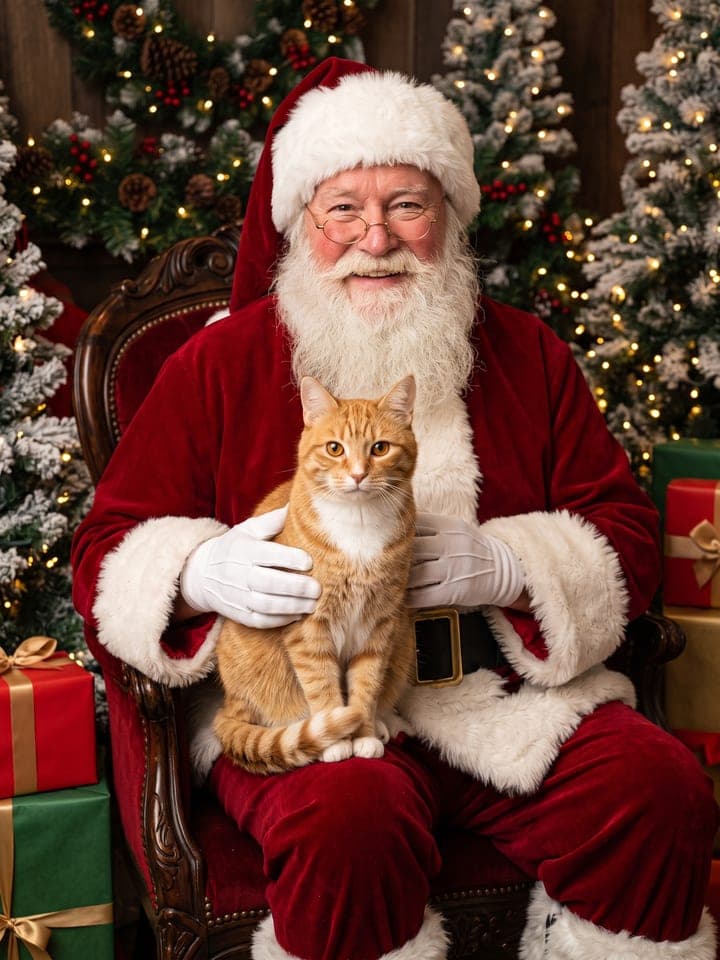
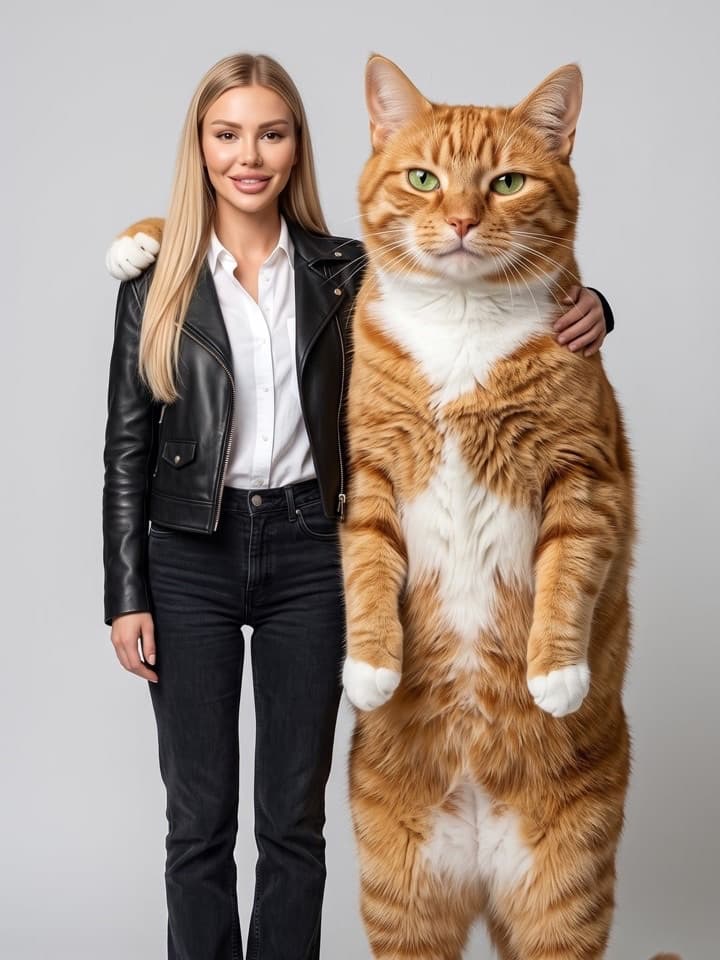
Example result. Yours is made from your own photo.
Upload one photo of you and one of your dog or cat, pick a scene, and get one natural photo of the two of you together. Your face comes from your photo, the fur and markings from theirs. Scenes: a sunny park walk, a cozy sofa at home or a clean studio portrait.
1 photo
per result
Shapes: 9:16 · 3:4 · 4:5 · 1:1 · 4:3 · 16:9. Example shown in 3:4. How photos are counted
How to make a photo of you and your dog together from two separate photos
Me and My Pet turns two separate photos, one of you and one of your dog, into one AI photo of the two of you together. Upload your photo in the first slot and your pet's in the second (a cat or another pet works the same way), pick a scene and press Create: 1 photo per run on any plan, with 3 free photos once you confirm your email on a new account.
- In Your photo, add a picture with only you in the frame, face sharp, waist-up or full-length.
- In Your pet's photo, add one animal, close up, eyes open. Choose a Scene: Park walk, At home (the default) or Studio portrait.
- Press Create (1 photo). Make another keeps both photos in the form, so you can switch the Scene and compare.
Doing it here or asking a chatbot: what is different?
ChatGPT and Gemini both accept two uploaded images, so you can ask either to put you and your dog in one picture. There you write the request yourself: which image is which, the setting, the light, the animal's size and what must not change, which is also how you get a setting of your own.
Here the request is already written. Two labeled slots keep the photos from being swapped. Every run asks to keep your face, age and skin texture without beautifying, to copy the fur colors and markings from the pet photo, to show the animal at its real size, to match light and shadows on both and to leave out text and other people. You pick a scene instead of describing one. A failed run costs nothing, and uploads are deleted within 24 hours.
What can you use it for?
- The photo with your dog you meant to take for years.
- A picture with the pet that lives with your parents.
- A memorial photo with a pet that has passed away.
Which two photos to upload
- Use a photo of you alone, face sharp and lit from the front. A face in shadow or turned away leaves less of your features to keep.
- Waist-up or full-length beats a face crop for Park walk and At home, where you walk, crouch or sit on a sofa next to the pet.
- Shoot your pet at eye level in daylight, whole head in frame. Fur colors come from this photo, so a dim or orange-lit shot can change the coat.
- Make sure the markings you care about show in the pet photo, like a white chest patch or one folded ear.
What goes wrong most often?
- A group photo of yourself. Only one person appears in the result, so another face can take your place.
- For a pet that has passed away, choosing the best pose over the sharpest photo. The scene sets the pose; a blurry picture can shift the coat.
- Expecting a painting or a costume. This is a natural photo of the two of you; for an oil portrait in velvet and lace, use Royal Portrait With My Pet.
What you need
Your photo
Waist-up or full-length, face clearly visible, daylight.
Your pet's photo
Close-up in daylight, eyes visible. Small or dark photos can change the fur color.
- You pick the scene
- Park walk, At home, Studio portrait
Works well
- A sharp photo with the face clearly visible
- Good, even light
- Your pet's face close up, eyes open
- Daylight, taken at your pet's eye level
Avoid
- Blurry photos and heavily compressed screenshots
- Faces hidden by hands, hats or shadows
- Dark or tiny photos: they can change the fur color
- Motion blur, or other animals in the frame