Old Photo Restoration
AI photo template · from an old photo
Brings grandma's photo from the family album back to life, in color.
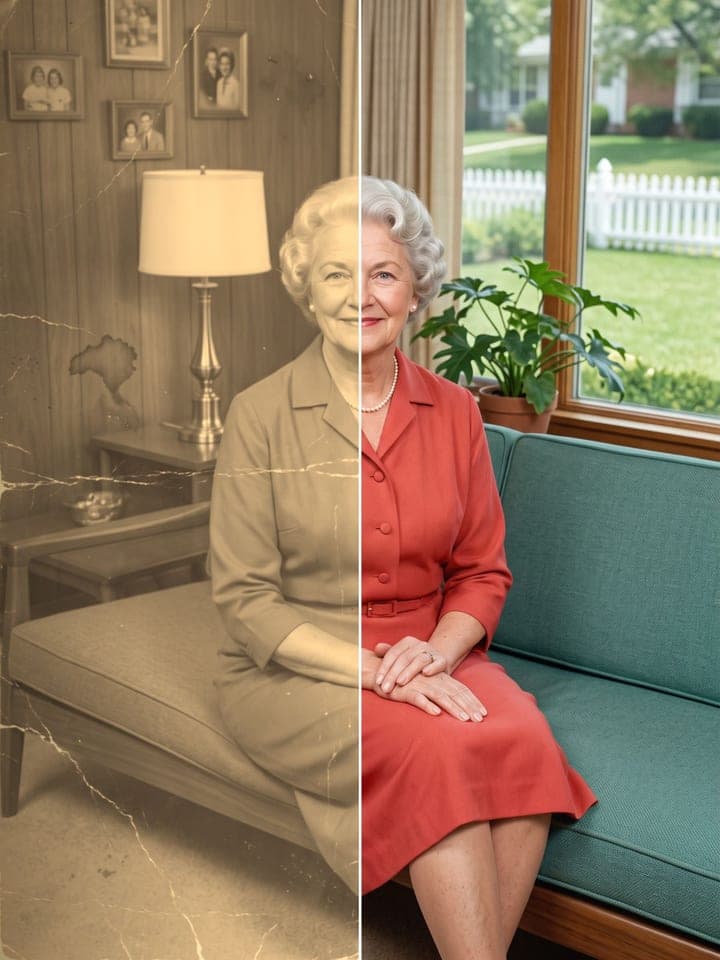
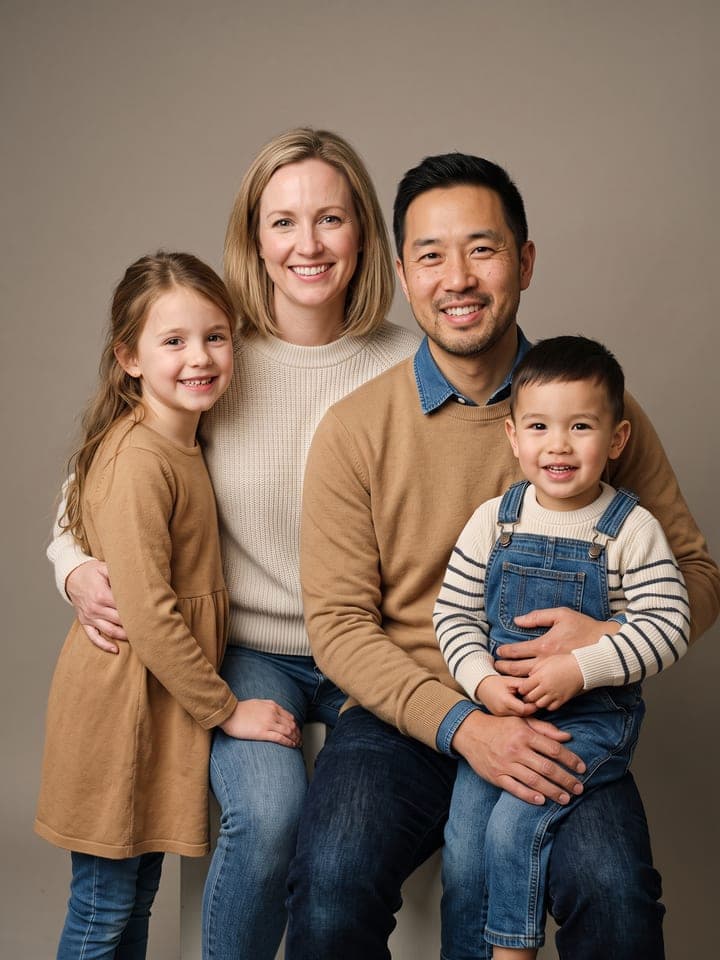
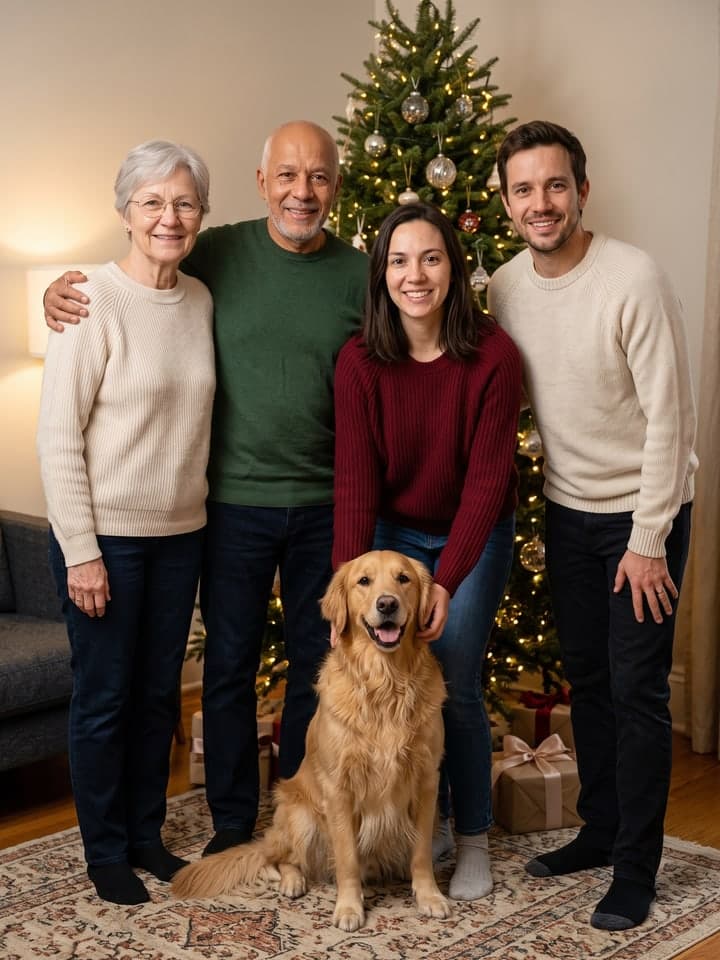
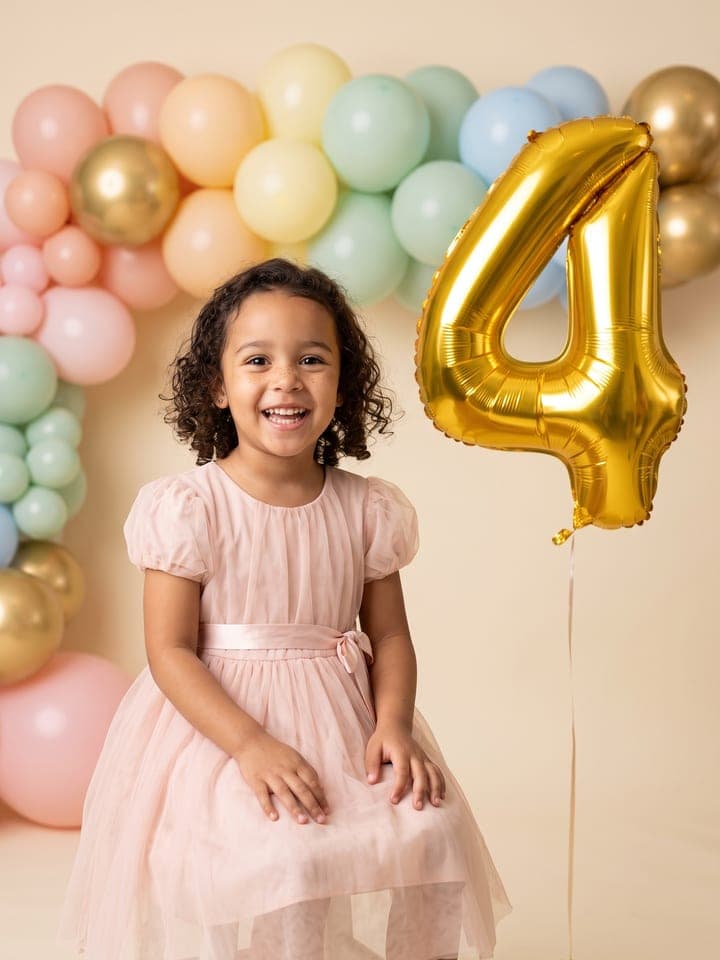
Example result. Yours is made from your own photo.
Upload a scan of an old print: scratches, creases, stains and fading are removed, faces and clothes recovered, and natural colors added. The real features and the era's atmosphere stay.
1 photo
per result
Output: same shape as your photo. How photos are counted
- For parents and guardians. Photos of children are deleted within 24 hours.
How to make an old family photo look new with AI
To restore an old family photo for printing or a gift, upload one scan of the print to Old Photo Restoration: 1 photo per run, on the free plan too, with color always added. Scratches, creases, stains and fading are removed and faces and clothes are recovered, while the real features and the feel of the era stay. For more control, including keeping black and white, use Restore & Colorize.
- Scan the print on a flatbed scanner, or photograph it flat and straight-on in daylight, without glare.
- Open Old Photo Restoration, upload the scan and press Create (1 photo). There are no settings: color is always added.
- Download the result from My creations and compare it with the scan before you print it or give it away.
What can you use it for?
- A framed print of grandparents' wedding photo for an anniversary.
- A restored picture for a memorial service or a family reunion slideshow.
- A cleaned-up copy to share in the family chat, so everyone has the same version.
How do I get a better result?
- Crop off the album page and the white border before uploading. The template works on the photo itself, and a border of album paper is just more damage to guess at.
- Tilt the print or the lamp until the glare disappears. A shiny reflection over a face reads as missing detail.
- Scan at the highest setting your scanner offers. Small faces in a group photo need every pixel to be recovered well.
- Keep the original scan. If a detail you know (a dress color, eye color) comes out differently, you still have the untouched version.
What goes wrong most often?
- Expecting the exact original colors. Added color is plausible for the era, not a record of what people wore.
- Using this when you want to keep black and white. This template always colorizes; the Restore & Colorize tool lets you choose.
- Photographing the print at an angle. Faces get stretched, and the stretch is restored along with everything else.
What you need
Scan of the old photo
Scan or shoot the print flat, in daylight, without glare.
Works well
- A scan, or a flat, straight-on photo of the print
- The album page cropped off
Avoid
- Glare from a lamp or window
- Shooting the print at an angle
Guides with Old Photo Restoration
Want more options in one go? Restore & Colorize does this job in more depth: 1 restored photo per run.